Hic Sunt Dracones
Gauss–Krüger to WGS84 Coordinates Transformation Tool
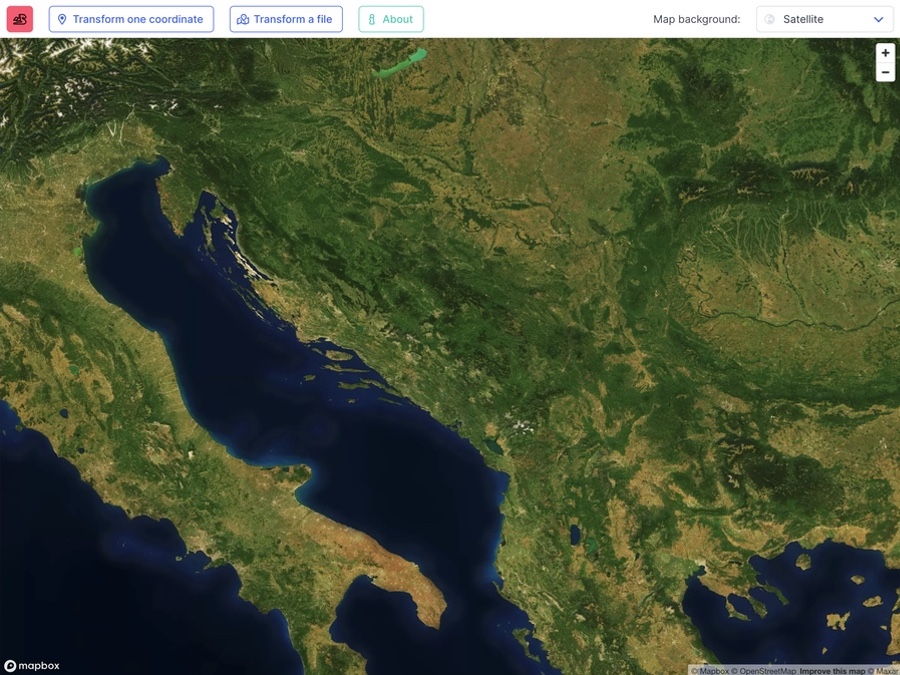
Gauss is a web app with a map that converts coordinates between different systems used in the Balkans. Most often, people use it to convert GPS coordinates to Gauss–Krüger coordinates, or vice versa.
The app supports WGS84, HTRS96/TM, and Gauss–Krüger zones 5, 6, and 7.
How To Use The App
Gauss is simple to use. You can convert a single coordinate or an entire file, and your results will appear on the map.
Reset The App
At the top-left corner of the screen, the red dragon button resets everything so you can start over at any time.
Convert One Coordinate
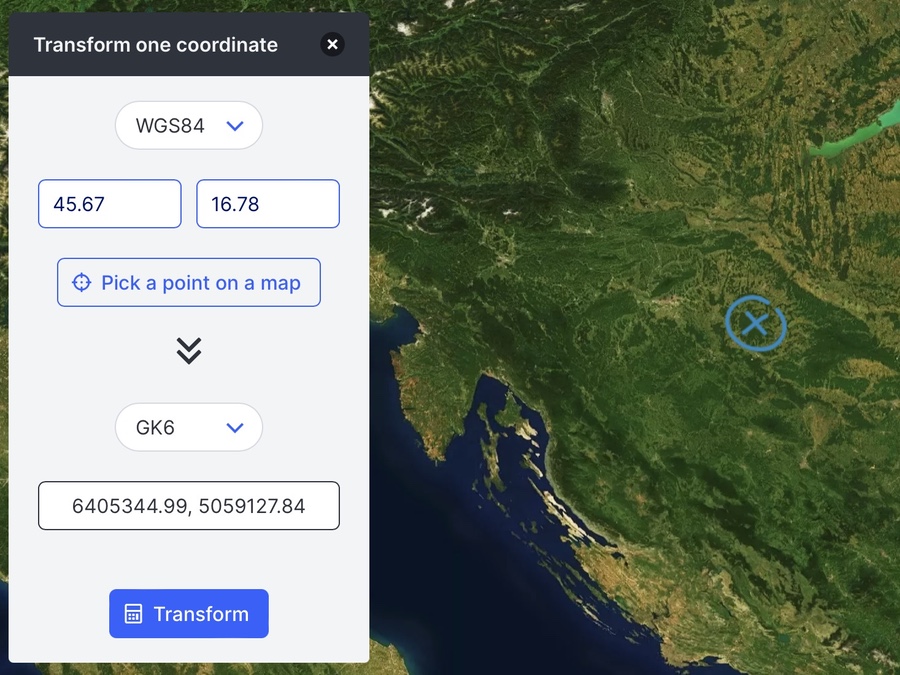
Click “Transform one coordinate” and pick the system your coordinate uses. Enter the two numbers, one in each field. Use a decimal point instead of a comma: 46.78 is correct, but 46,78 is not.
If you don’t know the exact coordinates, you can choose a point on the map. Zoom in first, because at the default zoom, one pixel covers more than a kilometer. Then click “Pick a point on a map” and select your spot. Gauss will fill in the latitude and longitude in WGS84. After that, choose the output system and click “Transform”.
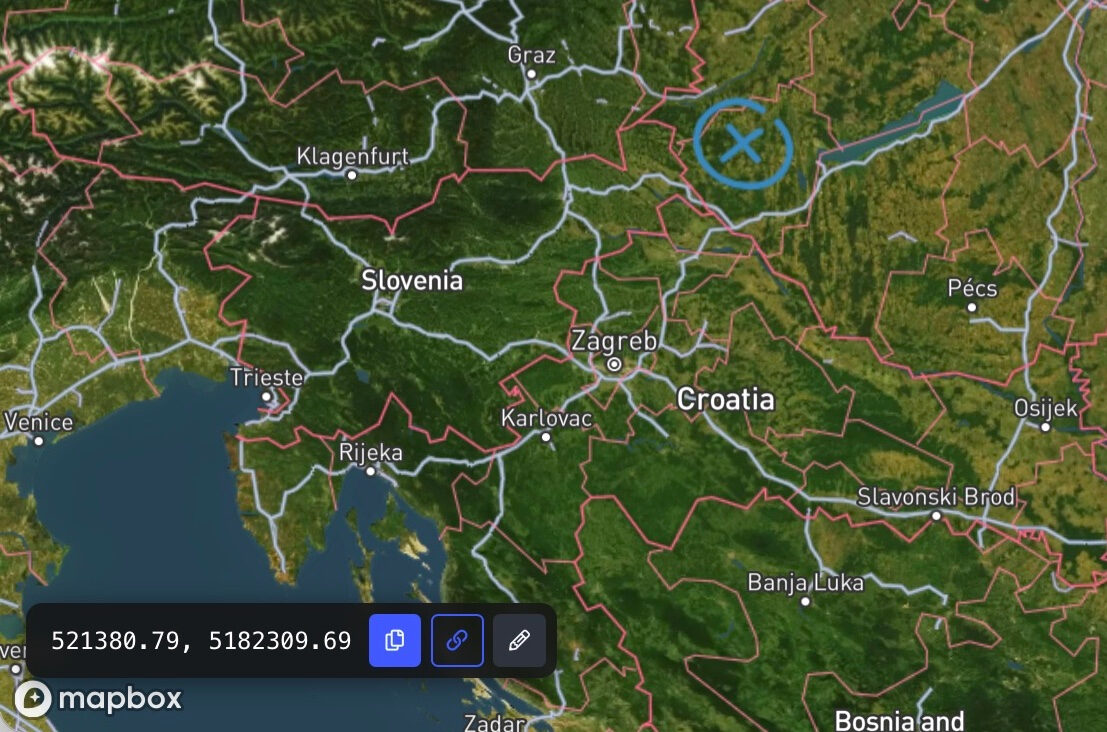
After the conversion, a blue marker will appear, and the map will center on it. The zoom level stays the same, so you might need to zoom in to see the exact spot. The newly converted coordinate appears in a dark bar at the bottom left. You can use the buttons there to copy the result, copy a shareable link, or reopen the panel to change your values.
Share a Conversion As a Link
You can share a single-coordinate conversion as a link. Click “Copy shareable URL” in the panel or use the chain-link button in the result bar to copy the link.
Convert a Whole File
You can convert an entire file at once. Gauss reads CSV files, which are plain text files with comma-separated values. It also supports GPX files, which GPS devices and apps use to save tracks and waypoints.
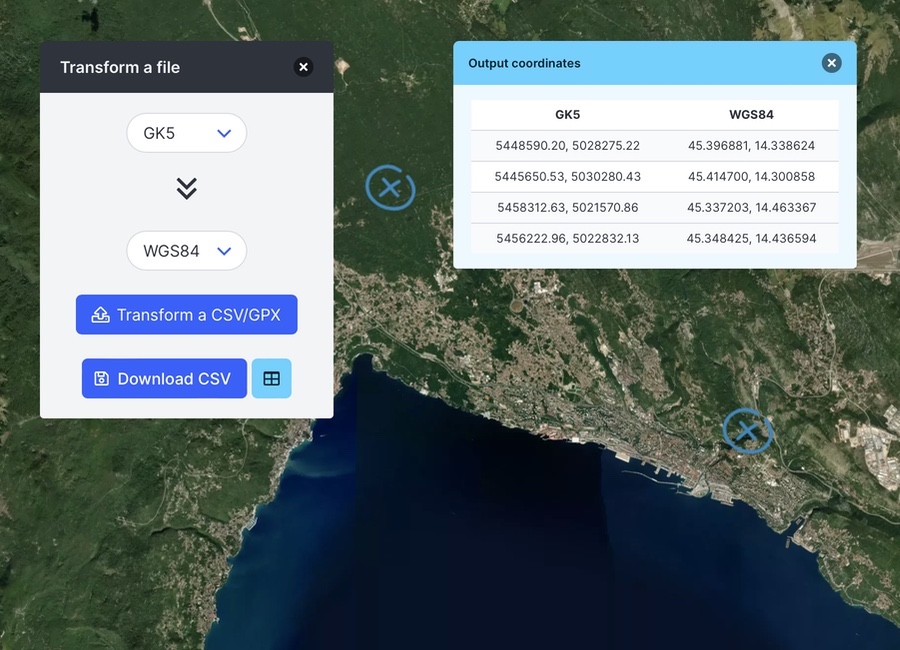
Click “Transform a file” and select the input and output systems first. Then click “Transform a CSV/GPX” and choose your file. Gauss will convert it immediately. If you change the system afterward, it won’t recalculate, so you’ll need to select the file again, even if it’s the same one.
CSV files are straightforward: each line has one point, with its two coordinates first and in the correct order. Use commas to separate the values and decimal points for numbers. To see an example, download the sample CSV file in GK5 and open it in a text editor. Here’s what it looks like:
5448590.20,5028275.22
5445650.53,5030280.43
5458312.63,5021570.86
5456222.96,5022832.13
Remove any header rows. A header such as “lat,lng” won’t prevent the conversion, but it will show up as an error at the top of your results. Extra columns after the first two are okay, because Gauss ignores them and leaves them out of the results.
GPX files are even easier. Gauss reads their track points, waypoints, and route points, and ignores extra details like elevation, time, and names. GPX coordinates are always in WGS84, so you only need to choose the output system.
Check and Download Your Results
After the conversion, your points will show up on the map, and a table will list each point’s original and converted values. You can hide the table and zoom in on the map to see the points better. Markers that are close together stay hidden until you zoom in far enough. To bring the table back, click the light blue table button with the grid icon.
Lines that can’t be converted stay in the table and are marked as errors, so you can see what needs fixing. Common errors include using semicolons or decimal commas in the file. Another mistake is choosing WGS84 as the input system for a file that actually uses HTRS96 or Gauss–Krüger coordinates.
Click “Download CSV” to save your results as coordinates.csv. Each line will have your two original values, then the two converted ones. Error lines are included so you can find them. The download always includes every row, even if the table only shows the first 1,000.
Convert Degrees, Minutes, and Seconds
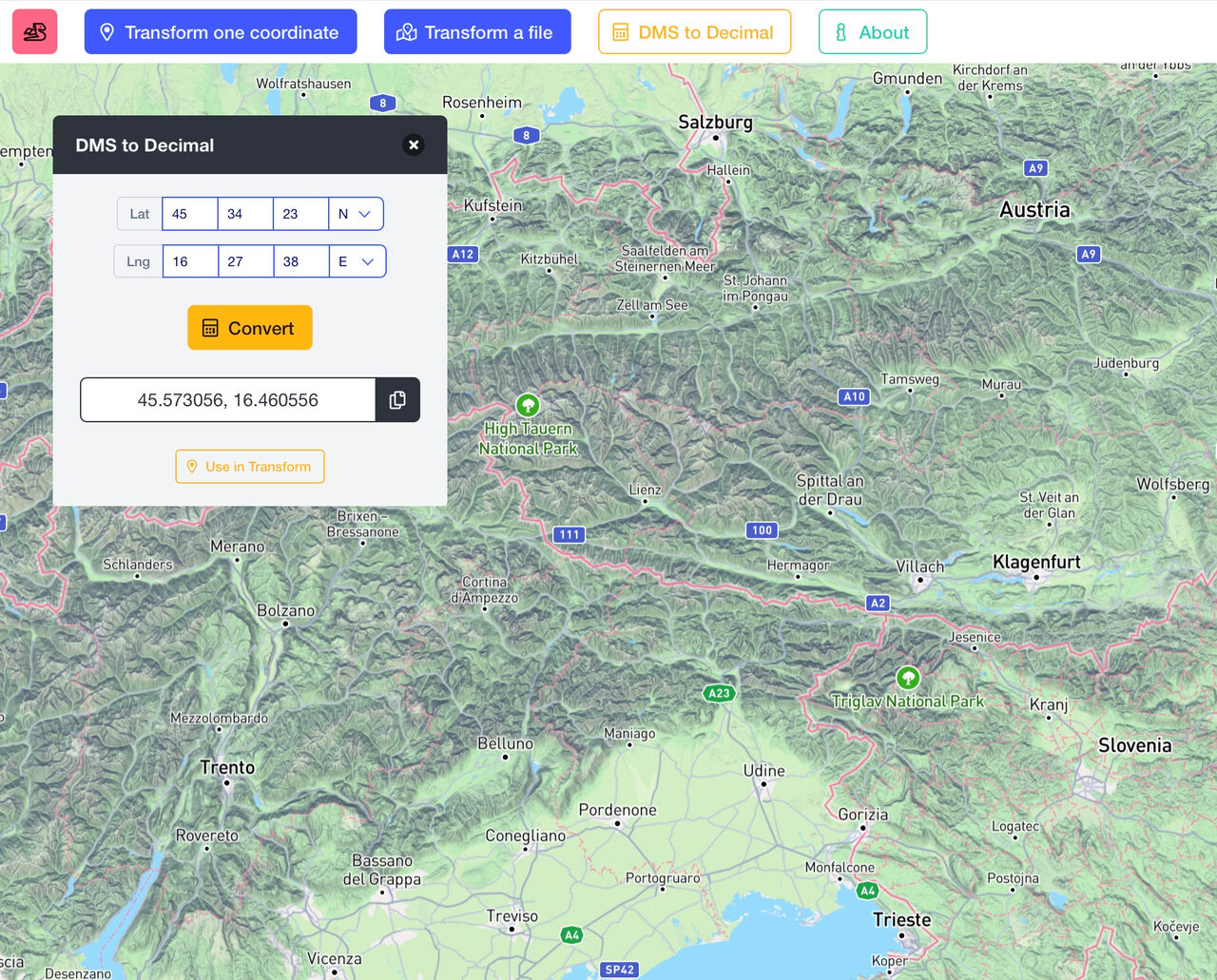
Sometimes, GPS coordinates are written in degrees, minutes, and seconds (DMS), like 45° 34′ 23.4″ N. Gauss uses decimal degrees, so the “DMS to Decimal” tool will convert them for you.
Don’t enter negative numbers, since the N/S and E/W options handle that for you. S or W will give you a negative result. For degrees and decimal minutes, like 45° 48.78′, put the decimals in the minutes and leave the seconds blank.
To convert the calculated decimal result into another coordinate system, click “Use in Transform”. The result will move into the “Transform one coordinate” panel as WGS84, replacing what was there. Then select the output system and click “Transform”.
Change the Map Background
The map starts with satellite imagery, with roads and place names on top. To change it, use the “Map background” menu on the right side of the top bar, or find it in the ☰ menu on phones and small tablets.
“Streets” shows a road map with place names and points of interest. “Terrain” adds terrain height to the street map. Your markers stay in place when you switch backgrounds, but Gauss always opens with the default satellite imagery and doesn’t remember your last choice.
Accuracy
Gauss is accurate enough for mapping, navigation, GIS, and general use. It’s not designed for surveying, property boundaries, or anything legally binding. For those tasks, use official geodetic software and transformation models.
Results display six decimal places for WGS84 (about 10 cm) and two for the other systems (1 cm). This shows the precision of the numbers, but it doesn’t mean they’re accurate to that level.
Privacy Policy
Gauss keeps your coordinates and files on your own device. All calculations happen in your browser, and nothing you type or open is ever uploaded. Everything stays in your browser’s memory, and only temporarily. Technically, Gauss is a client-side app with no server-side scripts.
The app is written in plain JavaScript. It uses Mapbox for maps and the open-source Proj4js library for coordinate conversion. Both load when you open the page, so Gauss needs an internet connection and doesn’t work offline.
Feedback
This post covers the main features. If you have questions or comments, please get in touch. Your feedback helps shape future updates. I’m also open to suggestions for new features that could make your daily work easier.
Gauss is free to use. If you find it helpful and want to support it, you can buy a satellite imagery map poster from my Etsy shop.
✍️